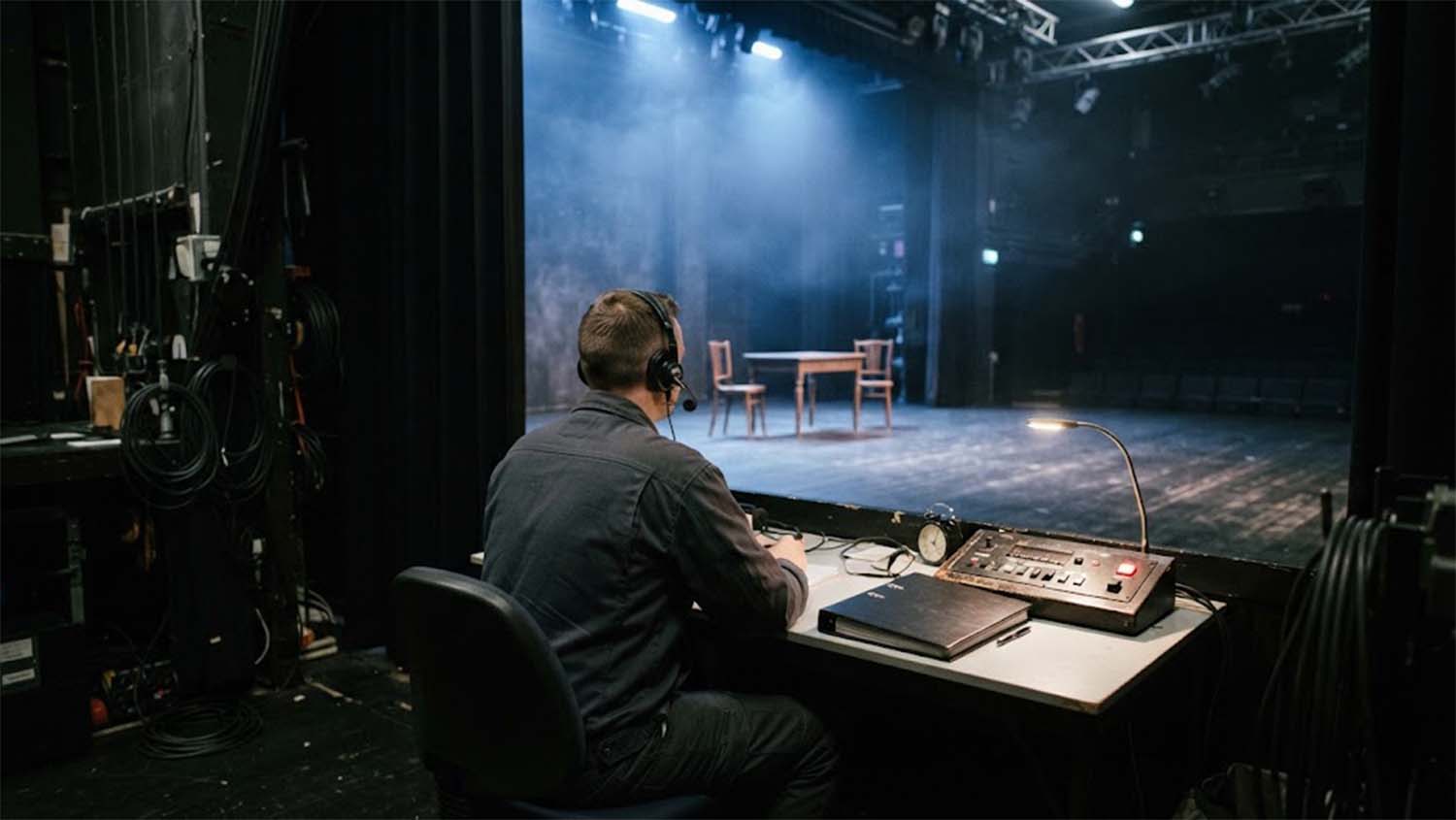

Features, design and layout each have their place in WordPress: plugins for what the site does, the theme for how it looks.
Plugin, Theme or functions.php? Where WordPress Code Belongs
A WordPress site picks up custom code over time. A developer adds a team members section, a booking rule, a tracking script or a connection to a CRM, and each piece has to be saved somewhere. WordPress gives that code several possible homes: a custom plugin, the theme’s functions.php file, a child theme, a must-use plugin or a code snippets plugin.
They all run PHP, so in the short term they can look interchangeable. They behave very differently when the theme changes, when the theme updates or when a new developer takes over. This guide covers what each location is for, what goes wrong when a feature lives in the wrong one, and how to check where your site’s code lives today. It expands one point from our guide to website platforms you can start without code and extend later: build on the platform’s extension points and don’t edit the platform itself.
Where custom WordPress code belongs: key facts
| Question | Answer |
|---|---|
| Where should a site feature go? | In a plugin. WordPress’s Theme Handbook says features meant to outlast the current design belong in a plugin. |
| What is the theme for? | Design. The handbook’s rule of thumb is that “themes should only deal with the site’s design.” |
| What happens to functions.php code when the theme changes? | It stops running. WordPress only loads the active theme’s functions.php. |
| What happens to edits made to a theme you didn’t write? | They are overwritten the next time that theme updates. Changes to someone else’s theme belong in a child theme. |
| What is a must-use plugin? | A plugin in wp-content/mu-plugins that loads automatically, before normal plugins, and cannot be turned off from the WordPress admin. |
| Are code snippets plugins a good place for custom code? | For small tweaks. They keep code out of the theme, but widely used ones such as WPCode and Code Snippets store it in the database rather than in files, so larger features are better moved into a real plugin. |
| How do custom features appear in the block editor? | As custom blocks, which the Block Editor Handbook says are “typically bundled in a plugin.” |
| Should anyone edit WordPress core files? | No. The Plugin Handbook’s cardinal rule is “Don’t touch WordPress core,” because “WordPress overwrites core files with each update.” |
Where should custom WordPress code go?
| What the code does | Where it belongs | Why |
|---|---|---|
| Adds a feature the site needs whatever it looks like: custom post types, forms, integrations, pricing or booking logic, custom blocks | A custom plugin | Keeps working through theme changes and redesigns, and can be switched off on its own |
| Must always run and should never be switched off by accident: host integrations, site-wide security or bootstrap code | A must-use plugin | Loads before normal plugins and cannot be deactivated from the admin |
| Changes the design or templates of a theme someone else maintains | A child theme | The parent theme can update without wiping out the changes |
| Sets up a theme you own: theme supports, stylesheets and scripts, block styles and patterns | That theme’s functions.php | It is design code, and it should leave with the design |
| A small tweak an owner needs without file access | A code snippets plugin | Quick and theme-independent, with trade-offs covered below |
| Anything | Not WordPress core files, and not the files of a theme or plugin you don’t maintain | Updates overwrite them |
The rest of this guide explains each row.
Themes are for design, plugins are for features
WordPress’s own documentation separates the two. The Theme Handbook’s page What Is a Theme? acknowledges that themes and plugins often overlap, then sets out the best practice:
- “Themes control the presentation of content.”
- “Plugins control the behaviors and features of your site.”
It goes on: “Any theme that you create should not add site-critical functionality. Doing so means that a user loses access to that functionality when they change their theme.” The handbook’s example is a theme with a built-in portfolio feature, where anyone who builds a portfolio with it will lose it when they switch themes.
The WordPress.org theme directory enforces the same line. Its theme review requirements tell theme authors not to include plugin functionality, and list examples of what counts as “plugin territory”:
- Analytics or tracking support
- SEO options
- Contact forms
- Meta boxes not related to design
- Resource caching
- Social media like, follow and share buttons
Those rules apply to themes submitted to WordPress.org, but the reasoning applies to any site. If a feature should still work after a redesign, it doesn’t belong in the theme.
What is functions.php, and when is it the right place?
Every theme can include a functions.php file. The Theme Handbook’s page on custom functionality says it “essentially acts like a WordPress plugin,” with access to the full PHP language. WordPress loads it on every page view, in the admin and on the front end.
The same page explains the limitation: “While all themes can have a custom functions.php file, WordPress will only load the currently active theme’s.” The classic themes chapter’s comparison of plugins and functions.php spells out the difference:
| A plugin | A theme’s functions.php | |
|---|---|---|
| Header | Needs a plugin header comment | No header needed |
| Location | wp-content/plugins, usually in its own folder | The theme’s folder in wp-content/themes |
| When it runs | Only while the plugin is activated | Only while its theme is the active theme |
| Scope | Works with every theme | Tied to one theme; “if the theme is changed, the features can no longer be used” |
| Purpose | Should have a single purpose | Can hold many blocks of code for different purposes |
functions.php is the right place for code that belongs to the theme’s design. That includes registering theme supports, loading the theme’s stylesheets and scripts, and registering block styles and patterns the design depends on. The handbook’s rule of thumb is that “themes should only deal with the site’s design.” For features meant to work whichever theme is active, the same page says “it is best practice to put the code in a plugin.”
What goes wrong when features live in the theme?
The feature disappears when the theme changes
Sites switch themes during a redesign, when moving to a block theme, or when the old theme stops being maintained. Any feature registered in the old theme’s functions.php stops running at that moment.
Content is a particular risk. The Plugin Handbook’s guide to registering custom post types says: “We recommend that you put custom post types in a plugin rather than a theme. This ensures that user content remains portable even if the theme is changed.” If a theme registers a “Team Members” or “Properties” post type and the site switches themes, WordPress stops registering that post type, and the admin screen for managing those entries goes with it.
Edits to a parent theme are overwritten on update
Themes from commercial vendors and from the WordPress.org theme directory, which lists more than 8,700, receive updates, and an update replaces the theme’s files. The Theme Handbook’s child themes page calls adding a function directly to the theme’s functions.php the fastest option, then warns: “the next time your theme is updated, your function will disappear!”
The Advanced Administration Handbook says the same about the built-in Theme File Editor: “Be aware that if the theme you edit is updated, your changes will be overwritten.”
Edits in the dashboard go live immediately
WordPress includes a Theme File Editor and a Plugin File Editor in the admin. According to the Editing Files documentation, “The changes you make to files using the WordPress editors are instant.” There is no staging step, so a mistake reaches visitors as soon as it is saved.
If a PHP error in a theme or plugin does break the site, fatal error recovery mode, added in WordPress 5.2, limits the damage. When a fatal error occurs, WordPress emails the site’s admin address a link to recovery mode, which pauses the plugin or theme causing the error for that browser so the admin can log in and deal with it. Visitors still see an error until it is fixed. The Editing Files documentation recommends backing up before editing any file, and notes that dashboard file editing can be turned off by adding the DISALLOW_FILE_EDIT constant to wp-config.php.
The next developer has to untangle it
A plugin has a name, a header and usually a single job, and it appears on the Plugins screen. A functions.php file that has collected years of unrelated code has none of that. Before changing anything, the next developer has to work out which lines are design code, which are features and which are no longer needed.
When should you use a child theme?
A child theme is a small theme that names another theme as its parent. The Theme Handbook describes child themes as a way to customize a theme “without directly modifying the parent theme’s files,” so the parent can still be updated without losing those changes.
How it works:
- The child theme needs only a
style.cssfile whose header includes aTemplatefield naming the parent theme’s folder. - A template, template part or pattern in the child theme replaces the parent’s file with the same name.
- The child theme’s functions.php does not replace the parent’s. Both load, with the child’s loading “immediately before the parent.”
The handbook adds two cautions. Don’t copy code from the parent’s functions.php into the child’s, because that “will likely lead to fatal errors because of duplicate function names.” And extensive customization in a child theme “can eventually become a management headache”; at that point it can be better to fork the theme and maintain it as your own.
A child theme protects changes from parent theme updates, but it is still a theme. A feature placed in a child theme’s functions.php disappears on a theme switch just as it would in the parent. Use the child theme for design changes, and a plugin for features.
Block themes add one more layer. Changes made in the Site Editor are stored in the database rather than in the theme’s files, and the handbook describes that user customization layer as working like a “grandchild” theme of sorts.
Why a custom plugin is the default home for site features
A plugin does not need to be published or shared. A site-specific plugin, written for one site and installed only there, is a normal and documented use. The Plugin Handbook’s Plugin Basics page notes that “Sometimes a plugin you create is just for your site.”
The minimum is small. A plugin is a PHP file in wp-content/plugins, ideally in its own folder, with a header comment that, per the header requirements, contains at least a Plugin Name. From there it uses the same hooks a theme would. Actions run code at specific moments, and filters change data and pass it back.
A plugin also gives a developer things functions.php does not:
- Lifecycle hooks. Plugins can run setup code when activated, clear temporary data when deactivated and delete their data when uninstalled. Per the handbook’s page on activation and deactivation hooks, activation is where a plugin adds rewrite rules, creates custom database tables or sets default options.
- An on/off switch. A plugin can be deactivated from the Plugins screen to test whether it is causing a problem, without touching the theme or other features.
- Protection from name collisions. Since WordPress 5.8, the Update URI header lets custom plugins “avoid accidentally being overwritten with an update of a plugin of a similar name from the WordPress.org Plugin Directory.” It is worth setting on any custom plugin, since the WordPress.org directory already lists more than 70,000 plugins.
- A clear boundary. One plugin per feature, or one per site for a set of small related features, gives the next developer an obvious place to look.
What are must-use plugins?
Must-use plugins, or mu-plugins, live in wp-content/mu-plugins. The Advanced Administration Handbook explains that they are “automatically enabled on all sites in the installation,” load in alphabetical order before normal plugins and “cannot be disabled from wp-admin.” They appear in a separate Must-Use section on the Plugins screen.
That makes them a good fit for code that should never be switched off by accident. The handbook’s examples include host integrations, startup code for the site that has to run ahead of regular plugins, and security, performance or maintenance code. It also notes that “Web hosts commonly use mu-plugins to add support for host-specific features.”
The same page lists the trade-offs:
- They get no update notifications, so “you are responsible for learning about and performing updates yourself.”
- “Activation hooks are not executed for plugins added to the must-use plugins folder,” so plugins that rely on activation or uninstall hooks may not work correctly there.
- “WordPress only looks for PHP files directly inside the mu-plugins directory.” A plugin in a subfolder needs a small loader file at the top level.
- “A broken mu-plugin can affect the whole site,” and one that has been compromised can be harder to notice.
The handbook’s advice is to keep must-use plugins “small, reviewed, and documented,” with a record of why each one exists and who maintains it. Site owners should also know when a host or agency has added them.
Are code snippets plugins a good alternative?
Code snippets plugins let an administrator paste PHP into a screen in the dashboard and switch each snippet on or off. Two widely used examples, by WordPress.org’s install counts, are WPCode, with more than 3 million active installations, and Code Snippets, with more than 1 million. Both keep snippets in the WordPress database rather than in files: WPCode saves each snippet as a custom post type, and Code Snippets uses a database table of its own.
Because the code doesn’t live in the theme, it survives a theme switch or update, which makes a snippets plugin a better choice than pasting the same code into functions.php. The trade-offs come from where the code lives:
- It isn’t in files. Code in the database sits outside version control, where a developer would normally track and review changes.
- It runs from the admin. Like the built-in file editors, it lets anyone with access to the snippets screen run PHP on the site.
- It adds up. A dozen snippets that together make up a feature are harder to follow than one plugin with a name.
A reasonable rule is that snippets suit small, self-contained tweaks. When several snippets add up to a feature, or a snippet is long enough to need its own testing, it is time to move it into a plugin.
How do custom features appear in the block editor?
A feature also has to reach the people editing the site. On WordPress, the native way to put a feature in front of an editor is a custom block, which they can insert, configure and move like any other block.
The Block Editor Handbook’s page on block registration says “Blocks in WordPress are typically bundled in a plugin and registered on both the server and client-side using block.json metadata.” Server-side registration is what enables features like dynamic rendering and styling through theme.json. The handbook’s Quick Start Guide uses the official @wordpress/create-block tool, which scaffolds a new block as a complete plugin.
Since WordPress 7.0, simple blocks rendered entirely on the server can also be registered in PHP alone, without a JavaScript build step. The same reasoning applies: register them in a plugin so they outlive the theme.
Putting a block in a plugin keeps it working after a redesign, so a quote calculator or booking form placed on dozens of pages doesn’t break when the theme changes. The theme still controls how blocks look, through theme.json, block styles and patterns. The division is the same one as before: the plugin provides the feature, and the theme provides the design.
Can you edit WordPress core or another plugin’s files?
Core is the one location that is never right for custom code. The Plugin Handbook calls it the cardinal rule: “Don’t touch WordPress core.” It explains that “WordPress overwrites core files with each update. Any functionality you want to add or modify should be done using plugins.” The Editing Files documentation makes one exception: “It is not recommended to change WordPress core files other than wp-config.php.”
The same reasoning applies to third-party plugins. Edits to another vendor’s plugin files are overwritten by that plugin’s next update. If a plugin offers hooks, a small custom plugin can adjust its behavior from outside.
How to check where your site’s custom code lives
You don’t need to read PHP to get a picture of a site’s custom code. A short audit:
- Check the active theme. On the Themes screen, see whether the active theme is a child theme and whether its parent receives updates.
- Look at functions.php. If the active theme’s functions.php runs to hundreds of lines, or has comments describing features rather than design, those features are tied to the theme.
- Check the Plugins screen. Look for a Must-Use section, and for custom plugins without a WordPress.org or vendor page.
- Check for a snippets plugin. If one is active, review how many snippets are switched on and what they do.
- Ask for a map. A developer working on the site should be able to say where each custom feature lives and why.
- Test before a redesign. Switch themes on a staging copy first and check that every feature still works.
If an article, a forum answer or an AI assistant tells you to “add this to your theme’s functions.php,” ask whether the code is design or a feature. Features should go in a plugin.
How to move code from functions.php into a plugin
For developers taking over a site, the move comes down to five steps:
- Create a site-specific plugin with a header comment, including an
Update URI. - Move feature code out of the theme and into the plugin, keeping the same hooks. Prefix function and class names so they don’t collide with other code.
- Remove the code from the theme in the same deployment, so the functions are never defined twice.
- If the plugin registers a custom post type, flush rewrite rules on activation, as the Plugin Handbook’s activation example does, so the post type’s URLs don’t return 404 errors.
- Test on staging, including a switch to a default theme, before deploying.
When to bring in a developer
Moving code between these locations is low-risk on a staging site and higher-risk on a live one, especially when custom post types, rewrite rules or a theme from an outside vendor are involved. If your site’s features are spread across a theme, a child theme and a snippets plugin, a developer can map them and move each one to where it belongs.
If you’d like help, see custom WordPress plugins, blocks and themes, and the WordPress category on this blog for more WordPress guides. The process and pricing are published, and you can get in touch to talk through what your site needs.