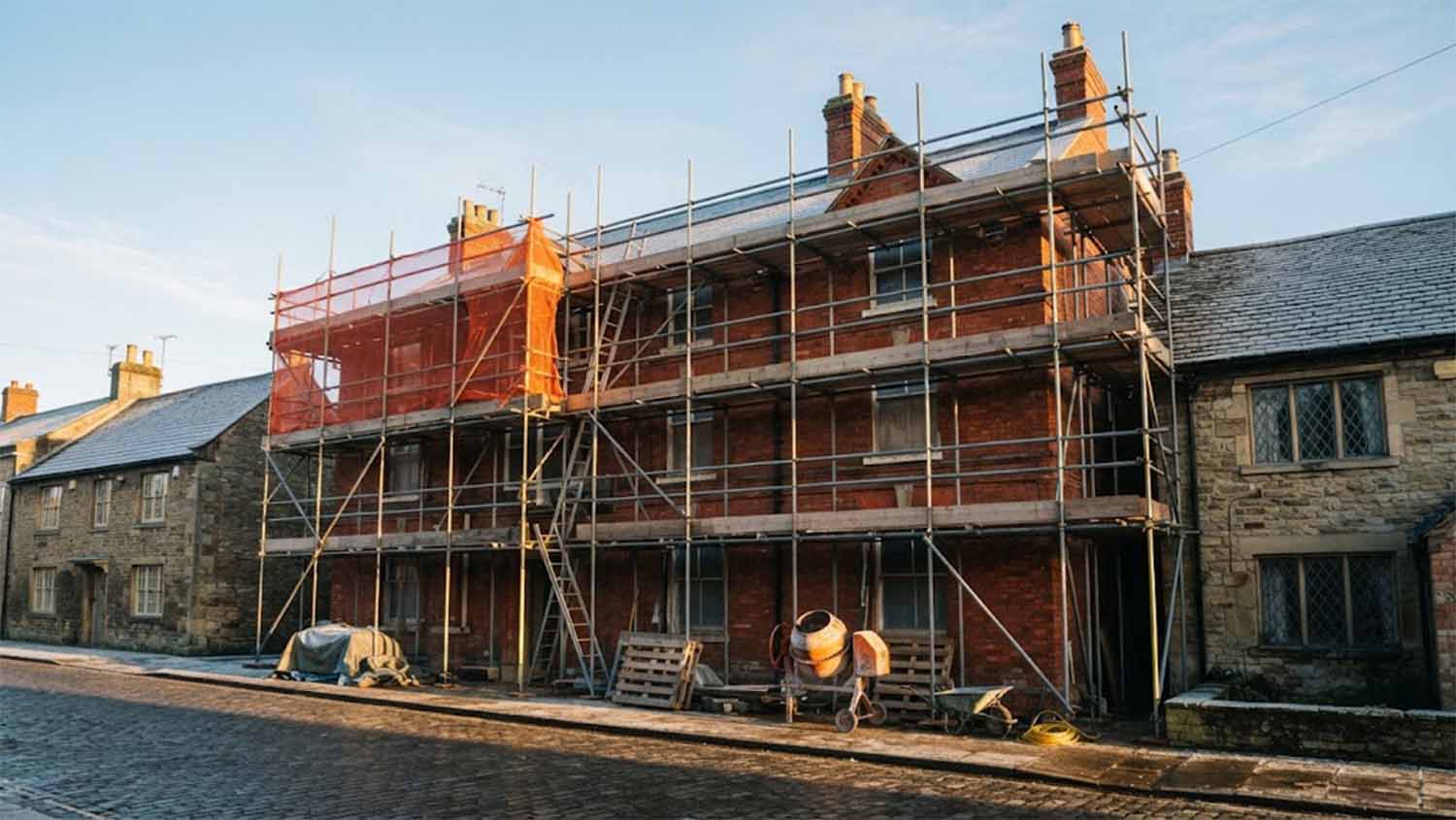

Editors stay backstage in the WordPress admin while a separate front end puts the content on stage.
Headless WordPress: When It’s Worth It and When It Isn’t
A standard WordPress site does two jobs at once. Editors write and manage content in the WordPress admin, and the active theme turns that content into the pages visitors see. Headless WordPress splits those jobs. WordPress keeps the admin and the content, and a separate front end, built with whatever tools the developer chooses, requests the content over an API and renders the pages itself.
The split has clear advantages, and it also hands the new front end a long list of jobs the theme and plugins used to handle. This guide covers what you gain, what you give up or have to rebuild, and how to tell which setup fits your site. It expands the headless paragraph in our guide to website platforms you can start without code and extend later.
This site runs headless. The WordPress install at cms.connorontheweb.com runs the Mainframe theme and feeds an Express front end at connorontheweb.com, so some of what follows comes from running that setup day to day. Every WordPress fact was checked against the WordPress developer handbooks on October 6, 2026.
Headless WordPress: key facts
| Question | Answer |
|---|---|
| What is headless WordPress? | WordPress manages content in its admin, and a separate application builds the public site from that content, read through the WordPress REST API or a GraphQL plugin. |
| Do editors have to learn a new tool? | No. Writing, editing, media, users and revisions all stay in the WordPress admin. |
| What do you gain? | Freedom to build the front end with any technology, full control over rendering and caching, and one content source that can feed several sites or apps. |
| What do you give up? | The theme and every plugin feature that displays on the front end. Forms, SEO tags, sitemaps, previews, comments and block styling have to be rebuilt or connected by hand. |
| Is headless faster? | Not by default. Speed depends on how the new front end renders and caches pages. A well-cached traditional theme can be fast too. |
| How many systems do you run? | Two: WordPress and the front end, each with its own hosting, updates and security. |
| Does WordPress recommend it? | WordPress documents the REST API for building separate front ends, but its handbook also says “you should not feel pressured to use the REST API if your site is already working the way you expect.” |
What is headless WordPress?
In a traditional setup, a visitor requests a page, WordPress picks a template from the active theme, fills it with content from the database and sends back finished HTML. Plugins hook into that process to add contact forms, SEO tags, related posts and much more.
In a headless setup, WordPress still stores the content, but visitors never load pages from it. A separate application asks WordPress for content, gets back data instead of finished pages, and builds the HTML itself. “Headless” refers to WordPress having no public-facing “head” of its own.
There are two common ways to read the content:
- The WordPress REST API, built into core. The REST API Handbook describes it as an interface for applications to send and receive site data as JSON, and lists building “a brand new interactive front-end experience” and bringing content “into completely separate applications” among its uses. The block editor itself runs on it.
- GraphQL, through the WPGraphQL plugin. Its documentation describes it as “a free, open-source WordPress plugin that provides an extendable GraphQL schema and API for any WordPress site.” GraphQL lets the front end ask for exactly the fields a page needs in one query. The REST API can trim its responses in a similar way with the
_fieldsparameter.
The front end can be almost anything that can make HTTP requests: a JavaScript framework, a server written in another language, a mobile app or a static site generator.
Headless vs. traditional WordPress at a glance
| Traditional theme | Headless | |
|---|---|---|
| Who renders pages | WordPress and the active theme | A separate front-end application |
| How editors work | WordPress admin | WordPress admin |
| Front-end technology | PHP templates or block theme templates, plus CSS and JavaScript | Whatever the developer chooses |
| Plugins that add front-end features | Work after installation | Need the front end to rebuild or connect them |
| Previews | Built in | Have to be built |
| Design changes in the Site Editor | Show up on the site | Have no effect on the separate front end |
| Hosting | One system | Two systems |
| Who can maintain it | Any WordPress developer | A developer who knows both WordPress and the front-end stack |
What do you gain from headless WordPress?
Front-end freedom
The front end isn’t limited to what a WordPress theme can do. A developer can build it with the framework the rest of the business already uses, combine WordPress content with data from other systems on the same page, or build features that would be awkward inside a theme, such as an app-like interface or pages that mix content from several sources.
That freedom matters most when the front end is closer to an application than a set of pages. It matters least when the site is pages and posts with a contact form, which is the job a WordPress theme already does well.
Performance and caching control
A headless front end decides exactly how and when pages are built: on every request, once at deploy time, or on a schedule with a cache in front. It also decides what data to fetch. The REST API’s _fields parameter limits a response to the fields a page needs, and the handbook notes that WordPress then skips work for the fields left out, so responses are smaller and quicker to produce.
Control is not the same as speed. A headless front end that requests content from WordPress on every page view, without caching, can be slower than a traditional site with a good page cache. The gain is that the developer chooses the caching strategy rather than working within a theme and a caching plugin.
On this site, the Express front end renders each post from the REST API and stores the finished HTML in a Redis cache. Visitors get the cached page, and a fresh copy is built in the background once the cached one is more than 10 minutes old, so WordPress isn’t queried on every page view.
One content source for several sites or apps
Because the content is available as data, more than one application can read it. A company could publish the same articles on its main site, a product help center and a mobile app, with editors writing each one once in WordPress. The REST API Handbook notes that the API’s JSON format means applications can be built “in client-side JavaScript (like the block editor), as mobile apps, or as desktop or command line tools.”
Custom content works the same way. A custom post type is available in the REST API when it is registered with 'show_in_rest' => true, per the handbook’s page on custom content types. Register those post types in a plugin rather than the theme, so the front end keeps receiving them whichever theme is active; Plugin, Theme or functions.php? Where WordPress Code Belongs explains why.
Editors keep the WordPress admin
The people who write content keep the tool they know. WordPress runs 40.1% of all websites, according to W3Techs, which makes it more likely that a new writer or client has used its admin before. Revisions, scheduling, media management, user roles and admin-side plugins all keep working, because they run inside WordPress rather than on the public site.
That also makes headless a way to replace a front end without migrating content. A site can keep years of posts, users and editorial habits and change only what visitors see. WordPress as a backend for modern web apps covers that case in more detail.
What do you give up or rebuild with headless WordPress?
The theme, and design changes in the Site Editor
A WordPress theme controls how a site looks. The Theme Handbook’s What Is a Theme? puts it as “Themes control the presentation of content.” In a headless setup, the separate front end does that job, so the theme’s templates, template parts, menus placed in templates, and changes made in the Site Editor have no effect on the public site.
Editors who are used to adjusting layouts, headers or menus themselves in WordPress lose that ability unless the front end is built to read those settings. Anything they should be able to change has to be planned into the front end and exposed to them as content or settings.
Front-end plugin features: forms, SEO output and more
Many plugins do their work by adding to the pages WordPress renders. The wp_head hook, which the reference describes as the place that “Prints scripts or data in the head tag on the front end,” is where WordPress core, SEO plugins, analytics plugins and others insert their tags. A headless front end never runs that hook, so none of that output reaches visitors.
A headless front end has to provide:
- The page head. Title tags, meta descriptions, canonical URLs, Open Graph tags and structured data. If an SEO plugin manages these in WordPress, the front end has to read its settings from the API or generate the tags itself.
- Sitemaps and feeds that list the front end’s URLs rather than WordPress’s. The REST API returns at most 100 items per request, per its pagination documentation, so a sitemap for a large site is built from several requests.
- Forms. A form plugin’s block or shortcode may appear in the API’s HTML, but the scripts and styles the plugin loads on WordPress’s pages don’t come with it. The front end needs a form that works without them, connected to an endpoint that processes submissions.
- Anything else a plugin adds to the public site, such as related posts, social sharing, popups, cookie banners and tracking scripts.
On this site, the Express app builds its own title tags, canonical links, Open Graph tags, sitemap and RSS feed from REST API data. Structured data is pasted into each post as a JSON-LD block, and the front end moves it into the page head.
Previews
In a traditional setup, an editor clicks Preview and sees an unpublished draft on the real site. In a headless setup, that preview link points at WordPress, not at the front end. WordPress provides the preview_post_link filter, which “Filters the URL used for a post preview,” so a developer can send the button to a preview route on the front end.
That route then has to fetch the draft. The posts endpoint returns only published posts unless told otherwise, and the REST API Handbook explains that content which isn’t public is “only available with authentication,” and the authentication page notes that WordPress’s standard cookie login “is only applicable when the REST API is used inside of WordPress and the current user is logged in.” For a separate front end, the same page names Application Passwords, included with WordPress since version 5.6, as the preferred method. The front end must keep those credentials on the server.
A headless site can also do without previews. Mainframe, the theme this site uses, removes the block editor’s Preview button, because WordPress’s own front end isn’t the site visitors see. Whether that works depends on how much your editors rely on previews before publishing.
Comments
Reading approved comments from the REST API and displaying them takes little extra work. Accepting new ones takes more. The rest_allow_anonymous_comments filter, which decides “whether comments can be created via the REST API without authentication,” defaults to false. A front end that accepts comments from visitors who aren’t logged in needs that filter enabled, or a server-side route that submits comments on their behalf, plus its own spam protection.
Block styling and interactive blocks
The block editor saves content as HTML with class names such as wp-block-image and has-large-font-size, and the REST API returns that HTML. The CSS for those classes doesn’t come with it. Per the theme.json documentation, a theme’s color palettes, font sizes and gradients are “converted to CSS Custom Properties and enqueued both the front-end and the editors,” and wp_enqueue_global_styles() “Enqueues the global styles defined via theme.json.” Both of those happen on pages WordPress renders. A headless front end has to supply its own CSS for every block and preset editors use, or posts lose their layout.
Interactive blocks raise the same issue for JavaScript. The Interactivity API, added in WordPress 6.5, is “used in many Core WordPress blocks, including Search, Query, Navigation, and File.” Their behavior depends on scripts WordPress loads on its own pages, so the front end has to replace those blocks or rebuild what they do.
This site handles block CSS with wp-block-styles, a stylesheet for the classes the block editor produces; Styling the WordPress REST API in Next.js, React, and Beyond explains the problem in more detail.
Two systems to host, update and secure
A headless site is two applications. WordPress still needs PHP, a database, core and plugin updates, and backups. The front end needs its own hosting, dependency updates and deployments. A WordPress update can also affect the front end. On this site, for example, Mainframe versions before 1.0.29 silently discard edits to Custom HTML blocks on WordPress 7.1 and later, so the theme had to be updated alongside WordPress.
The API also needs attention:
- Public content is publicly readable. The REST API’s FAQ says that because the API doesn’t check where requests come from, “public REST API endpoints may therefore be accessed from any site.” That covers anything published, by design.
- Don’t switch the API off. The same FAQ says “You should not disable the REST API; doing so will break WordPress Admin functionality that depends on the API being active.” It suggests requiring authentication for API requests instead, if anonymous access is a concern.
- Keep credentials on the server. Application Passwords and other credentials used for drafts or form submissions belong in the front end’s server code, never in JavaScript sent to the browser.
- Hide the old front end. WordPress’s own pages still exist unless something redirects them, which can create duplicate content in search results. Mainframe redirects WordPress’s public routes and can discourage search engines from indexing the CMS.
Headless or a traditional theme? A decision table
| Your situation | Better fit | Why |
|---|---|---|
| Pages, a blog and a contact form, managed by a small team | Traditional theme | Plugins cover forms, SEO and caching; one system to run |
| Editors adjust layouts and menus themselves in the Site Editor | Traditional theme | A separate front end ignores Site Editor changes |
| Editors depend on previews and front-end plugins such as page builders, forms and memberships | Traditional theme | Each of those has to be rebuilt in a headless setup |
| No developer will maintain the site after launch | Traditional theme | A headless front end needs a developer for most changes |
| The same content feeds a website, a mobile app or several sites | Headless | One WordPress install serves every channel |
| The front end is closer to an application, with logins, dashboards or data from other systems | Headless | Front-end freedom matters more than theme features |
| The business already builds its other software in a JavaScript framework | Headless | The site fits the team’s existing tools and deployment |
| Years of WordPress content, but the theme is slow or hard to change | Either | A new traditional theme may be enough; headless if the front end needs more than a theme can do |
If most of your answers land in the first column, a well-built traditional theme with custom features in plugins can do the job with less to maintain. A site moving off another builder, as covered in Outgrown Squarespace or Wix? Signs and What Moving Involves, can start on a traditional theme and go headless later, since the content stays in WordPress either way.
Can you use the REST API without going fully headless?
Yes. Using the REST API doesn’t require going fully headless. A traditional site can keep its theme and use the API for one part that benefits from it, such as an interactive tool on a single page, a mobile app reading the same posts, or a section built as a separate application. The REST API Handbook supports this kind of selective use: “You do not need to use the REST API to build a WordPress theme or plugin,” and you “should not feel pressured to use the REST API if your site is already working the way you expect.”
How this site runs headless WordPress
The setup behind connorontheweb.com, briefly:
- WordPress at cms.connorontheweb.com is where posts are written and edited. It runs Mainframe, a headless theme that exposes post types to the REST API, adds fields such as the featured image URL and category names to responses, redirects WordPress’s own public pages, and removes admin settings that don’t apply. The REST API Handbook’s guidance on modifying responses says “Adding fields is not dangerous” while changing or removing core fields can break other clients, so Mainframe only adds. Mainframe: Headless WordPress Theme covers it in more detail.
- The front end is an Express application that reads posts from the REST API, renders the pages, and caches the HTML in Redis.
- Rebuilt in the front end: title and meta tags, canonical links, Open Graph tags, the sitemap, the RSS feed, block styles, and moving each post’s structured data into the page head.
- Given up: WordPress previews and comments, neither of which this blog needs.
That trade works here because the front end also serves other applications and pages that have nothing to do with WordPress, and one developer maintains both sides.
Questions to ask before going headless
- What does the front end need to do that a WordPress theme can’t?
- Which plugins currently add something visitors see, and how will each one be rebuilt or replaced?
- Do editors rely on previews, the Site Editor or a page builder?
- Where will the front end be hosted, and who will deploy and update it?
- How will pages be cached, and how quickly must published changes appear?
- Who will handle SEO tags, sitemaps, redirects and structured data?
- Is there a developer available to maintain both WordPress and the front end after launch?
If questions 2, 3 and 7 are hard to answer, a traditional theme is likely the better choice for now.
When to bring in a developer
Start by listing what your current site does on the public side: forms, SEO, previews, comments, layout changes editors make, and anything plugins add to pages. That list shows how much a headless front end would need to rebuild. A developer can then compare that with what a new traditional theme would cost, and recommend whichever one serves the site with the least to maintain.
If you’d like help, see custom WordPress plugins, themes and headless setups and custom app development. The process and pricing are published, and you can get in touch to talk through what your site needs.